
Automatic Replies
With this feature you can setup automatic replies to respond to email messages when out of office, on vacation or not available.
Automatic Replies
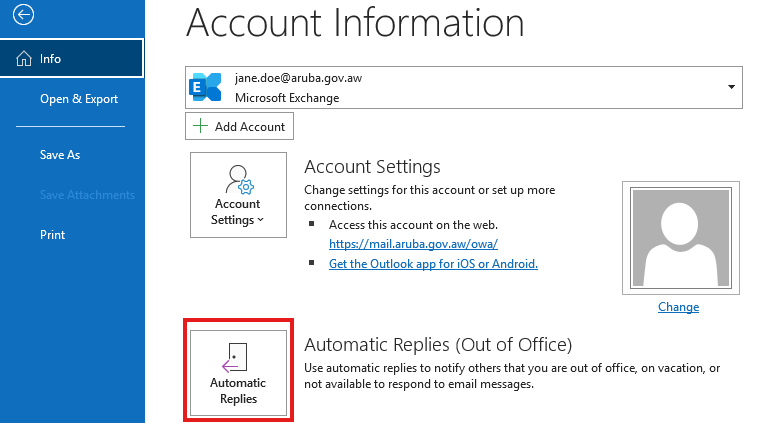
- Go to File - Automatic Replies
- Next you will see option to set the Start and End date/time. You can also configure different replies for contacts Inside Organization and Outside Organization.
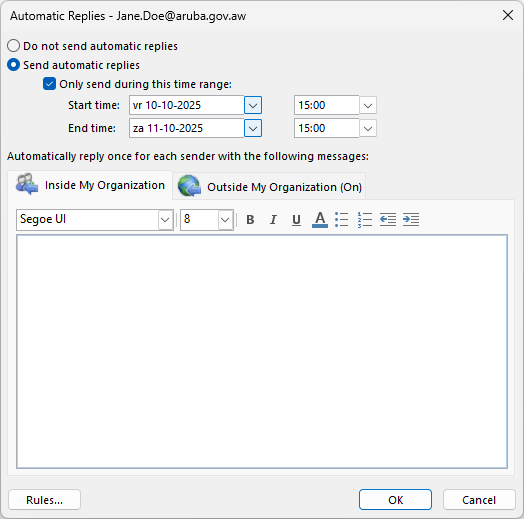
- Click OK, when your done.
Using Rules in Automatic Replies
Rules in Automatic Replies are used to manage and customize how incoming emails are handled while you are away or unavailable. These rules allow you to perform additional actions on incoming messages during the time your Automatic Replies are enabled.
Example use cases: Forward urgent emails from your manager to a colleague while you are away. Move newsletters or non-urgent emails to a specific folder for review later. Delete or ignore spam messages automatically during your absence. Respond with different messages based on the sender or subject line (using rules combined with templates).
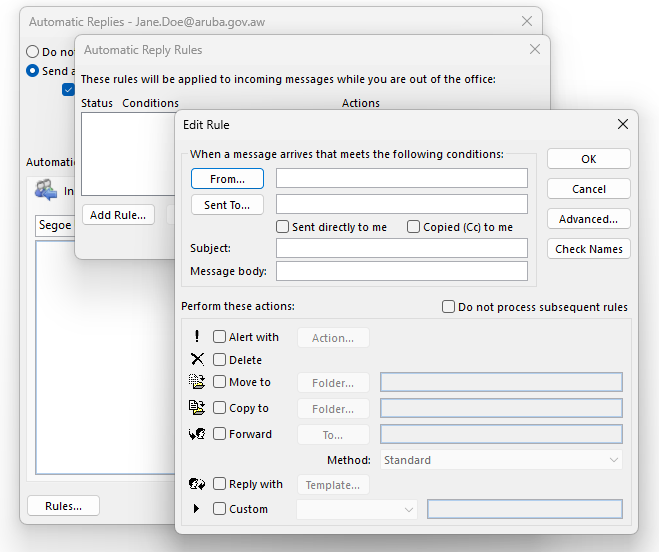
Conditions Section
These fields define the criteria that an incoming message must meet for the rule to apply.
| Fields | Description |
| From | Specify email addresses or contacts who sent the message. The rule applies only if the message is from these senders. |
| Sent To | Specify email addresses or distribution lists the message was sent to. The rule applies if the message was sent to one of these addresses. |
| Sent directly to me | The rule applies only if the email was sent directly to your email address (not just to a group or distribution list). |
| Copied (Cc) to me | The rule applies if your email address appears in the Cc field of the message. |
| Subject | Enter keywords or phrases. The rule applies if these appear in the subject of the incoming message. |
| Message body |
Enter keywords or phrases to look for in the email body. If found, the rule applies. |
Actions Section
These options specify what happens to the message when it meets the above conditions.
| Action | Description |
|---|---|
| Alert with | Show an alert or notification when a matching message arrives. |
| Delete | Automatically delete the message without saving it. |
| Move to | Move the incoming message to a specified folder. |
| Copy to | Make a copy of the message into a specified folder. |
| Forward | Forward the message to another email address. |
| Reply with | Send an automatic reply using a template. |
| Custom | Perform a user-defined custom action. |