Switch Sender's name in Shared Mail
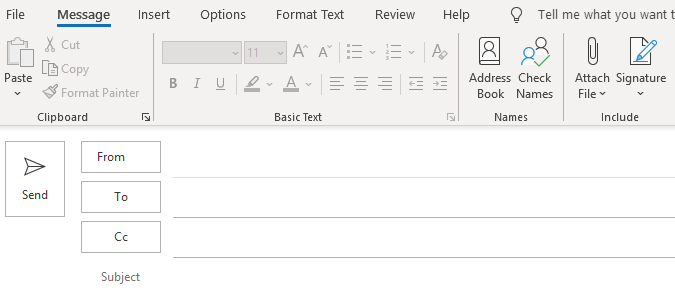
- Create new mail from Inbox of the Shared Mail:
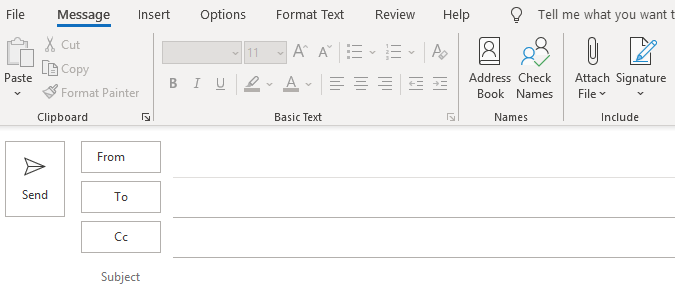
- Click "Options" and choose "From":
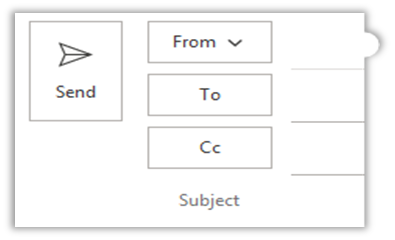
 It will open this window: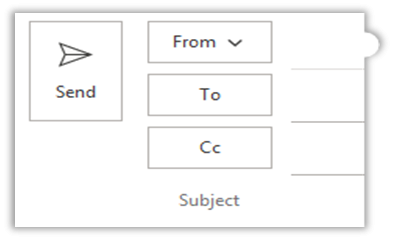
- The Form button becomes a drop-down menu, click on it and choose "Other E-mail Address".
- Choose the name of the shared mail (either start typing it or choose from the Global Address List.
- Click OK after choosing the shared mail e-mail address.
- From now on, when sending a mail from the shared mail, you can switch the sender's name in the e-mail.
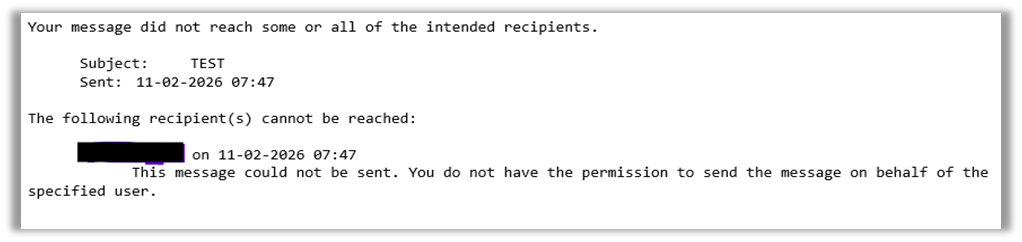
- Please notice: You can only switch names (in this case add) alternate sender's name if you have access/authorization on that said mail. If you do not have access or rights, you will get this warning in return: